
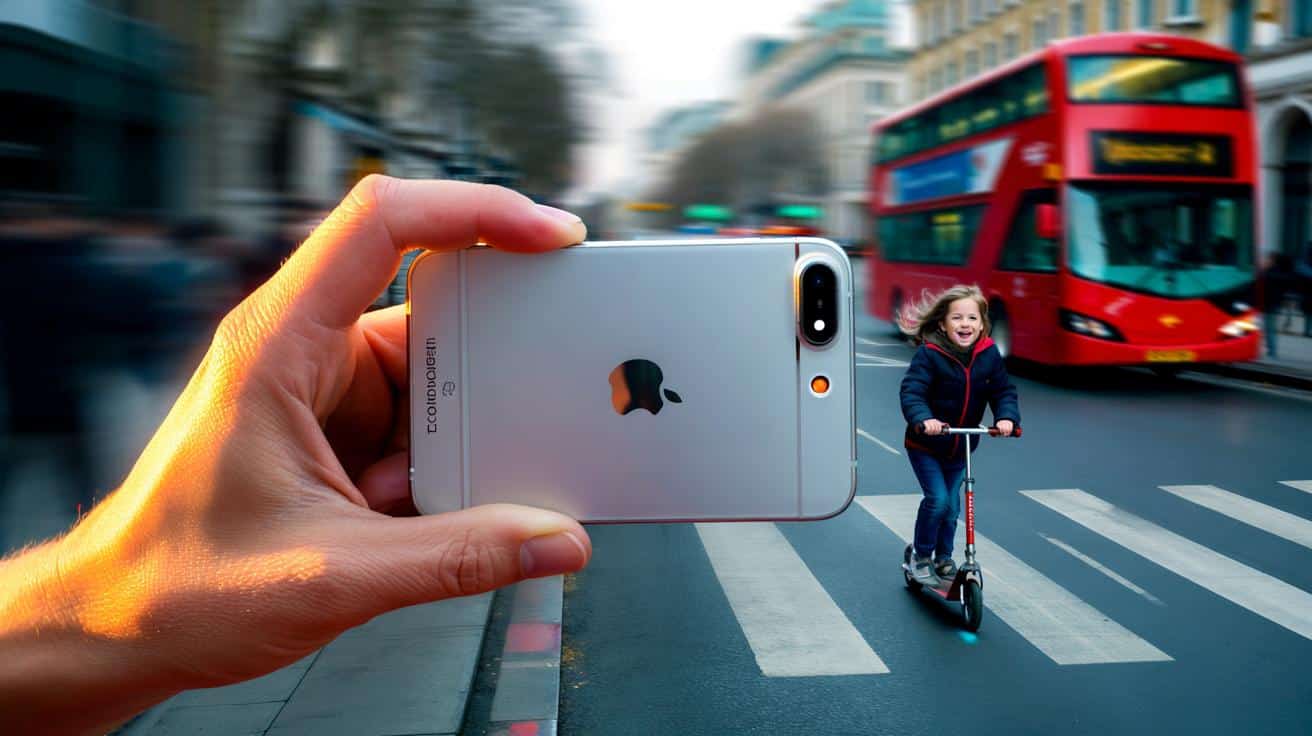
But there’s a tiny, almost secret move that makes your shots steadier, sharper, and more “pro” than you’d think your hands could manage.
I spotted it on a cold London morning, watching a dad trying to photograph his kid scooting across a zebra crossing. He kept jabbing the screen and missing the moment, then swearing softly as the photo blurred. A passer-by leaned over and whispered something, and in the next breath the dad held the phone differently, clicked with his thumb, and nailed the shot. The kid beamed. The dad exhaled. The photo looked like a magazine cover, all motion and crispness, no fuss. I went home and tried it on a bus window, in the park, on a dim pub table, and it changed the feel of the phone in my hand. A small, physical hack that makes your camera behave like a camera. Hidden in plain sight.
The hidden button that makes your iPhone feel “pro”
There is a physical shutter on your iPhone and most people ignore it. It’s the volume button. Hold the phone like a compact camera, thumb or forefinger on Volume Up, and press to take a photo without poking the screen. Your grip gets steadier, your timing gets better, and shake slips away like fog.
On iPhones running recent iOS versions, that same button does more than click. Turn on “Use Volume Up for Burst” in Settings > Camera, and a long press on Volume Up fires off a burst of frames. That’s how you freeze a kickflip, a jumping dog, or confetti mid-air. Long press Volume Down and the camera rolls QuickTake video, so you never need to switch modes while the moment evaporates.
There’s a logic to why this feels instantly more professional. Tapping a glass screen nudges the phone right at the critical moment, which lifts blur into your image at slower shutter speeds. A physical button lets your hands work as they do with a real camera: elbows tucked, body acting as a tripod, finger pressing in line with your grip. **Your volume buttons are a shutter button.** That one adjustment stabilises your frame and makes every other trick more effective.
How to use it like a pro (and the small extras that compound the gain)
Open Settings > Camera and toggle “Use Volume Up for Burst.” Now launch Camera, frame your subject, and press Volume Up to click a still. For action, press and hold Volume Up to burst, then lift to stop and review the stack. For fleeting moments, press and hold Volume Down to capture QuickTake video without leaving Photo mode. **Hold Volume Up for Burst; hold Volume Down for QuickTake.** It becomes muscle memory by the end of a weekend.
Grip matters. Pinch the phone on two sides, float your index on the button, and breathe out as you press. Use the 3s timer when light is poor to cut micro‑shake even more. We’ve all had that moment when the light is gorgeous and your hands aren’t. Let’s be honest: no one really does that every day. But when you remember, this little habit keeps your photos crisp and your frustration level low.
Want to push it further? Tap that tiny RAW/ProRAW button in the Camera toolbar on iPhone 12 Pro and later to capture more editing headroom, then keep shooting with the volume button as normal. On iPhone 15 Pro, set the main camera to 24MP or 48MP in Settings > Camera > Formats, then leave the hidden shutter to do its work. The craft is in the small touches, not a big lecture.
“The best upgrade is learning to hold and shoot like you mean it. The hardware was ready the whole time.”
- Settings path: Settings > Camera > Use Volume Up for Burst
- Bonus: Wired EarPods or Bluetooth buds with volume controls act as a remote shutter
- Steady: Use the 3s timer for low light, elbows tucked, exhale as you press
- Detail: Toggle RAW/ProRAW in the Camera interface for more editing latitude
Real-life examples and why this trick keeps paying off
Picture an evening birthday toast. Screens are out, light is warm, and the first person to tap the display misses the spark because the phone judders. Now imagine the same scene with a gentle press on Volume Up, elbows anchored on the table edge, 3s timer on. The glass catches the Fairy lights, faces stay sharp, and the frame looks intentional. **Wired or Bluetooth volume buttons also work as a remote, so you can set the phone down and join the photo.**
Street scenes benefit even more. The moment a cyclist cuts through a reflection, or a bus doors open with perfect symmetry, you don’t fumble for a mode change. You’re in Photo, finger ready, and a long press bursts the sequence. Later, you pick the one frame where everything lines up. No special gear. No post magic. Just a discrete physical input that beats latency and nerves.
There’s also the psychology. Using a button moves your brain into “camera” mode, which steadies your eye. You stop poking at the interface and start watching the light. If you want to go further, long-press to lock AE/AF on your subject, then shoot with the volume button so the focus doesn’t drift. It’s simple, and it feels oddly satisfying when the photo pops on screen like you planned it all along.
Here’s a practical bundle to try this weekend. Set the grid on in Settings > Camera to help your horizons. Switch on “Use Volume Up for Burst.” Turn on the level indicator if you have it, so the phone tells you when you’re flat. Then give yourself a tiny brief: three portraits, two action shots, one low‑light scene—always using the volume button. You’ll start seeing the difference before Monday.
For action, work in pools of light and pre-frame. Keep your feet planted, lock AE/AF with a long press on your subject, then hold Volume Up as the moment arrives. For portraits, ask the person to breathe out and hold for a beat while you click. If you’re shy in public, tilt the phone slightly and shoot from the waist with that tactile click—it’s quieter than a tap and steadier than you expect.
Don’t chase perfection in one go. Bright backlight? Step to the side, lock exposure on a mid-tone, then press the button. Fingers in the frame? Rotate your grip so your knuckles don’t creep over the lens. Low-light mush? Use the 3s timer, lean on a wall, and click with Volume Up instead of jabbing the display. Your keeper rate climbs as the small mistakes drop away. And yes, this is the bit where I say the boring thing that actually works.
Photography on a phone isn’t magic. It’s a handful of simple behaviours that stop the phone wobbling, keep your eye in the moment, and make the camera feel like something you know how to hold. The volume button trick sits at the heart of that. It nudges your body into a stable pose, frees your thumb from the screen, and gives you a tactile cue so you don’t hesitate. Share it with someone who keeps missing the shot by a fraction. They’ll thank you later, and their photos will start looking strangely… deliberate.
| Key point | Detail | Interest for the reader |
|---|---|---|
| Use the volume buttons as a shutter | Press Volume Up to shoot; steadier grip than tapping the display | Sharper photos without buying anything |
| Burst and QuickTake via long press | Enable “Use Volume Up for Burst”; hold Up for burst, Down for QuickTake video | Catch fast action and fleeting moments |
| Remote shutter with headphones | Wired/Bluetooth volume controls trigger the camera | Hands-free group shots and less shake in low light |
FAQ :
- Does this work on every iPhone?Pressing the volume buttons to take a photo works on most modern iPhones. Burst on Volume Up needs the toggle in Settings > Camera.
- Can I still use the screen shutter?Yes. The on-screen shutter and the volume buttons both trigger the same shot, so use whichever suits the moment.
- Will this drain my battery faster?No. You’re just using a different input. Battery use depends on screen time, processing, Night mode, and video length.
- How do I turn on ProRAW or higher resolution?Go to Settings > Camera > Formats and enable Apple ProRAW (on supported models). In Camera, tap RAW to toggle. On iPhone 15 Pro, choose 24MP or 48MP for the main camera.
- Can I use a watch or remote instead?Yes. Apple Watch has a Camera Remote app, and many Bluetooth shutter remotes send a “volume” signal that triggers the shot.






Tried this on a rainy street walk: elbows tucked, Volume Up to shoot, 3s timer in low light, and AE/AF lock on a mid‑tone. Keeper rate jumped from meh to wow. Turning on “Use Volume Up for Burst” in Settings > Camera was clutch for cyclists zipping by.
Is this really steadier than tapping the screen? On my 13 mini the button throw feels stiff; I’m worried it adds shake. Any data or side‑by‑side tests?